Website template guide
GoHighLevel Website Templates: Where to Find Them and How to Use Them
By the GHL Deals editorial team · Last updated: October 2026
TL;DR
- HighLevel includes built-in website and funnel templates; third-party templates and snapshots may be paid.
- Snapshots can package sites, funnels, workflows and other supported settings for reuse.
- The drag-and-drop builder has desktop and mobile views and supports your own domain.
- Templates are a starting point: replace copy, imagery, links and business details, then test before publishing.
- Compare the 30-day trial and current deals.
Option | What you get | What to check |
|---|---|---|
Built-in template | A page or site starting design | Replace all placeholder content |
Snapshot | A broader reusable account setup | Connections, workflows and permissions |
Third-party template | A seller’s design or package | Price, license, support and compatibility |
A template does not include a guarantee of conversions, legal wording, domain registration or free payment processing.
Where to find GoHighLevel website templates
In your sub-account, open Sites > Websites or Funnels, create a new item and choose the template option available in your account. You can also use supported templates from a snapshot or third-party seller; current button labels may vary.
Check the template’s page structure and mobile layout before importing it. A paid seller package is separate from HighLevel’s built-in library.
Edit a template in the builder
Open the page editor, select each element and replace the text, images, links and colors with your business content. Use desktop and mobile views, test forms and checkout, and remove sections you cannot support with accurate information.
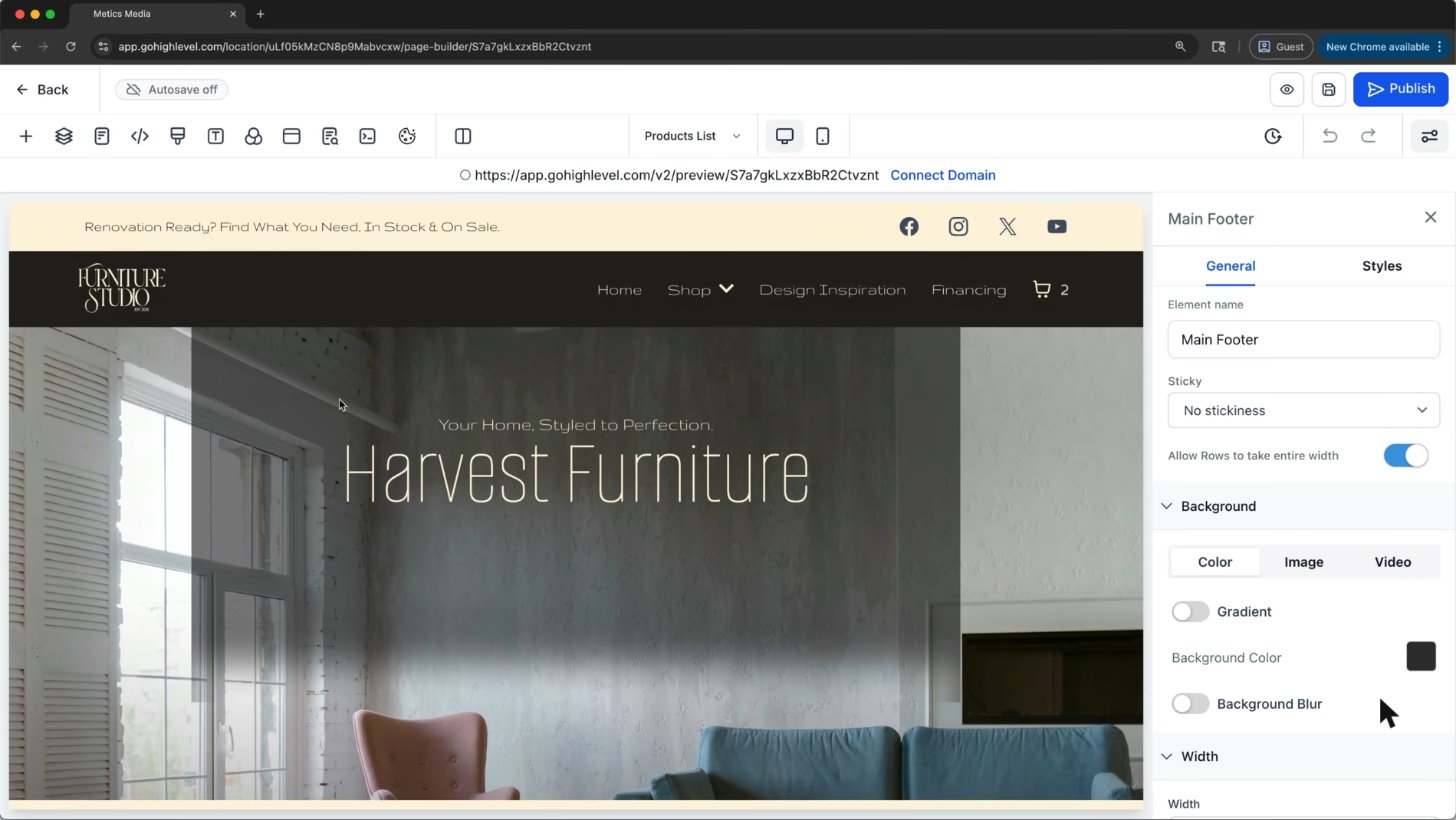
A ready-made store template open in the GoHighLevel builder: change text, images and colors, then publish.
Screenshot from Metics Media's GoHighLevel tutorial on YouTube.
Real site built on GoHighLevel
The supplied tutorial shows a peaqzone.com business landing page open in the HighLevel editor. It demonstrates a headline, video and call-to-action layout, not independently verified performance or endorsement of the page’s business claims.
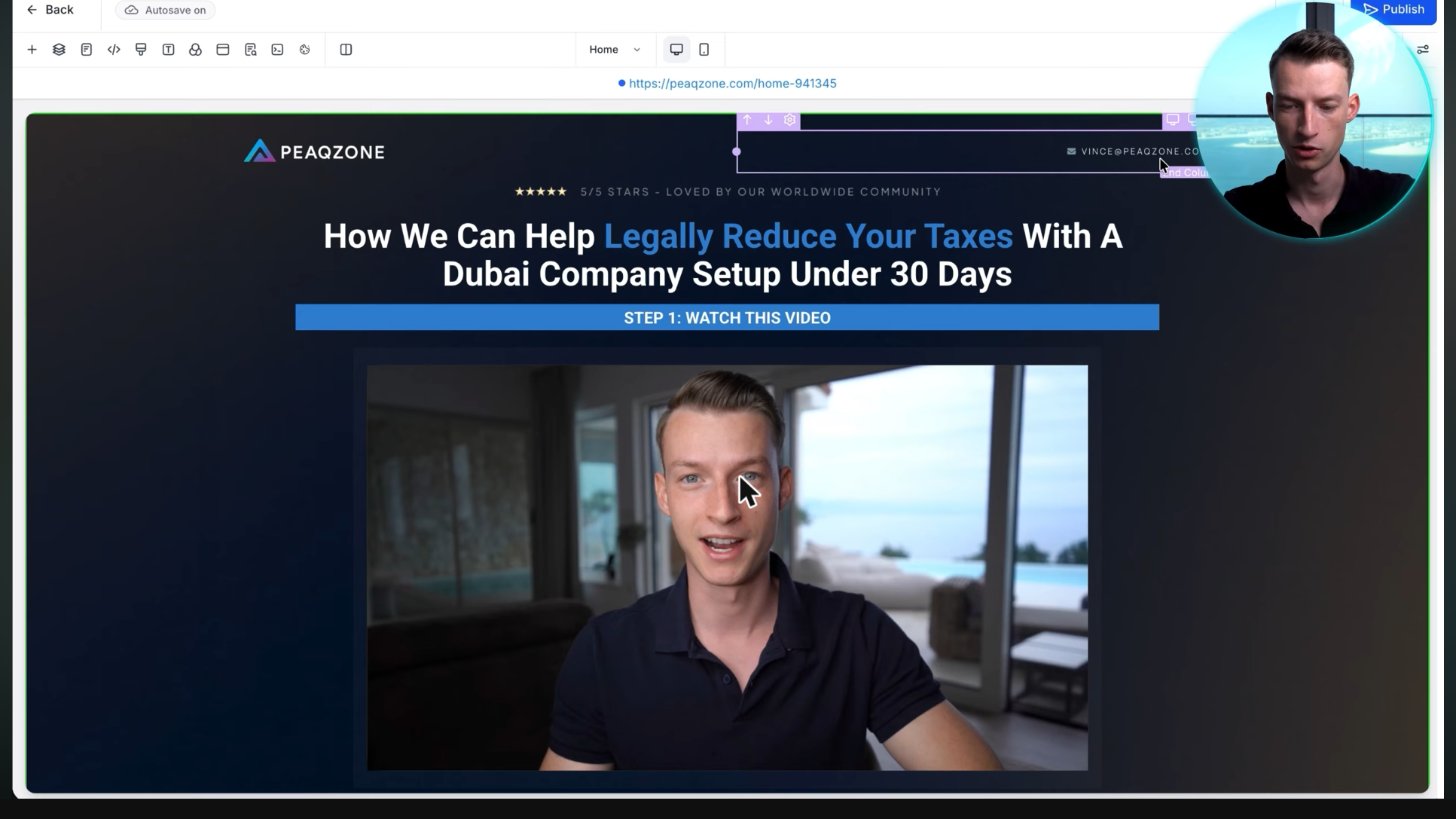
A business landing page for peaqzone.com shown inside the GoHighLevel editor. The headline, video and buttons can be edited in the builder; this is not an endorsement of its claims.
Screenshot from Vince Opra's GoHighLevel tutorial on YouTube.
Peaqzone.com was reachable when this guide was checked. The screenshot records the site at tutorial time, and a domain can later change its platform or content; current availability does not independently prove its present hosting platform.
Templates vs snapshots
A template mainly supplies page design. A snapshot can copy a wider set of supported configuration, such as funnels, workflows and custom fields, but it does not automatically transfer every external connection or make the setup ready for your business.
Connect your domain and publish
Add your domain in the account’s domain settings and follow the DNS instructions for the chosen website or funnel. Verify the connection, HTTPS, page paths and mobile layout before publishing; your registrar may charge separately and DNS changes can take time.
- Replace template content and check all links.
- Connect the domain using the exact DNS records shown in HighLevel.
- Assign the domain and page paths to the website or funnel.
- Publish and test forms, calendars and checkout on the public address.
Independent tutorial
FULL GoHighLevel Website Builder Tutorial for Beginners | 2026
An independent website builder walkthrough. Check current template and publishing instructions in the linked official help article.
Independent video by Ricco GHLPlaying shares data with YouTube. Independent creator tutorial, not official HighLevel support.
Frequently asked questions
Are GoHighLevel templates free?
Built-in templates are included with your account. Some third-party templates or snapshots are paid; check license and support terms.
Can I import a WordPress theme?
Not as a native HighLevel builder theme. HighLevel uses its own builder; rebuild the layout or use the separate WordPress hosting option where appropriate.
Are GHL websites mobile friendly?
The builder provides a mobile view for responsive layouts. You still need to check spacing, text, forms and images on real mobile screens before publishing.
Can I build a store?
Yes. HighLevel supports store pages and supported commerce features. Configure products, payment connections, taxes and shipping as needed.
Can I use my own domain?
Yes. Connect your domain through the documented DNS setup, then assign it to your site or funnel. Domain registration and renewal are separate.
Keep exploring GoHighLevel
Sources and editorial notes
- HighLevel: how the Template Library works
- HighLevel help center: current setup instructions
- Official HighLevel pricing and plan features
Screenshots supplied by Adam, with individual source credits beneath each image. GHL Deals is an independent guide, not HighLevel. Interface labels, feature availability and usage fees can change; confirm current terms before enabling a paid feature.
Disclosure: We may earn a commission if you sign up through our links, at no additional cost to you. How we earn.