Beginner tutorial
GoHighLevel Tutorial for Beginners: 10 Steps to Get Set Up
By the GHL Deals editorial team · Last updated: October 2026
TL;DR
- A weekend is a practical target for a simple setup, not a guaranteed completion time. Verification and integrations can take longer.
- Start with the Launchpad, then build one pipeline, one calendar, one funnel and one workflow.
- Use templates and recipes rather than building every element from scratch.
- Test one complete lead-to-booking flow before importing or messaging live contacts.
- Compare the 30-day trial and current deals.
Build | Small first version | Check before launch |
|---|---|---|
Pipeline | New lead, contacted, booked, won | Stage and owner updates |
Calendar | One appointment type | Time zones and conflicts |
Funnel | One capture page and thank-you step | Form reaches the CRM |
Workflow | One confirmation or follow-up | Consent, timing and stop rules |
Starter is enough to learn the core tools. Phone, email delivery, processors and AI can have separate charges or approval requirements.
1. Start your trial
Choose a trial offer and confirm its duration, selected plan and billing start date on the official signup page. Set a reminder before the trial ends and use test data while you learn.
2. Finish the Launchpad
Open your sub-account and work through the Launchpad setup prompts. Connect only what you need for the first lead-to-booking flow, and keep a list of items waiting for verification.
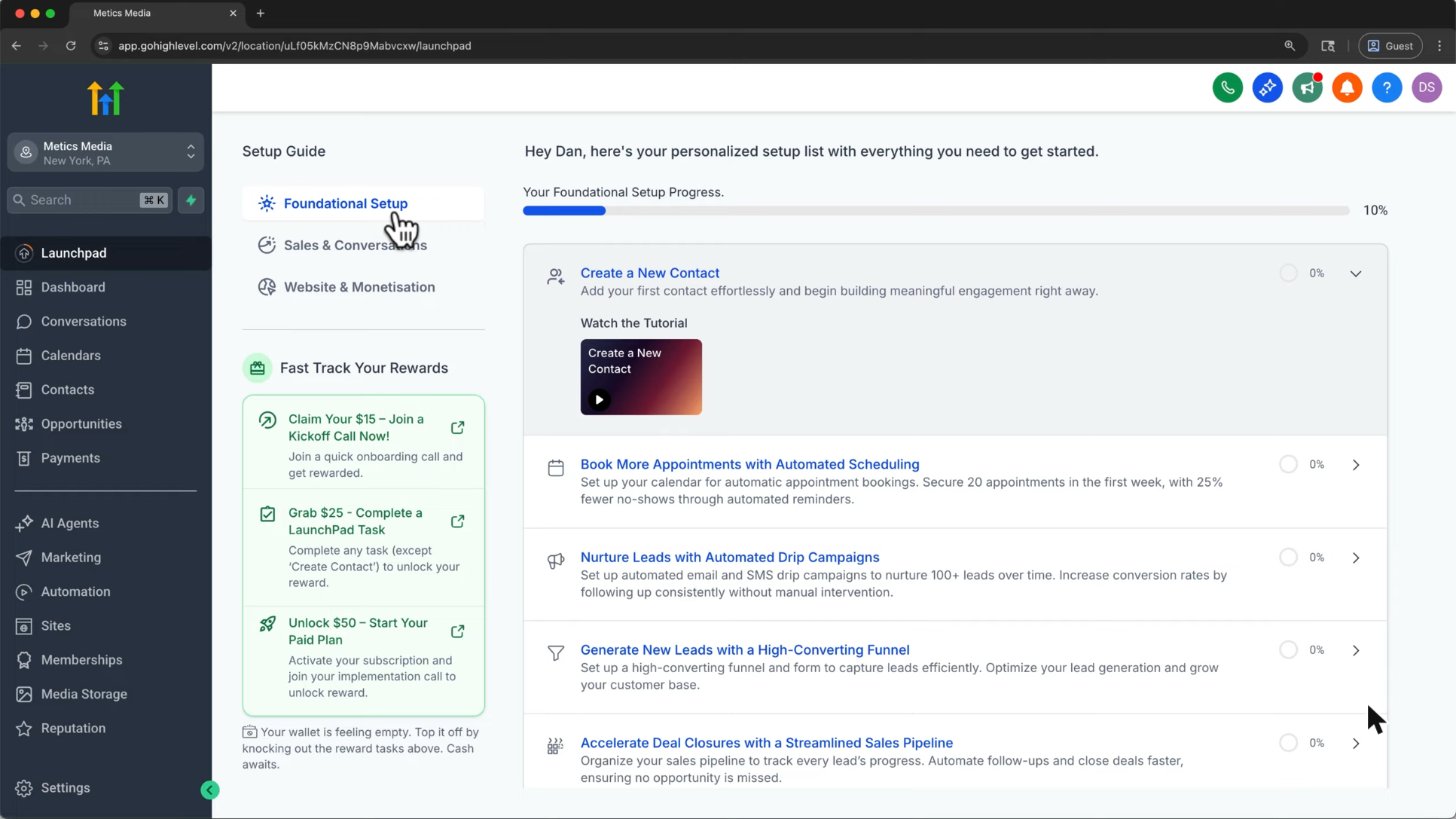
Brand new accounts can use the Launchpad to finish setup, then the dashboard fills up as you add data.
Screenshot from Metics Media's GoHighLevel tutorial on YouTube.
3. Add your business profile
In the business profile settings, add accurate business details, contact information, address and time zone. Check branding and sender details before publishing pages or sending messages; use your real information rather than template placeholders.
4. Import or add contacts
Start with one test contact or a small clean import and map the columns to the correct fields. Preserve consent records, remove duplicates and do not automatically message an old list just because it imported successfully.
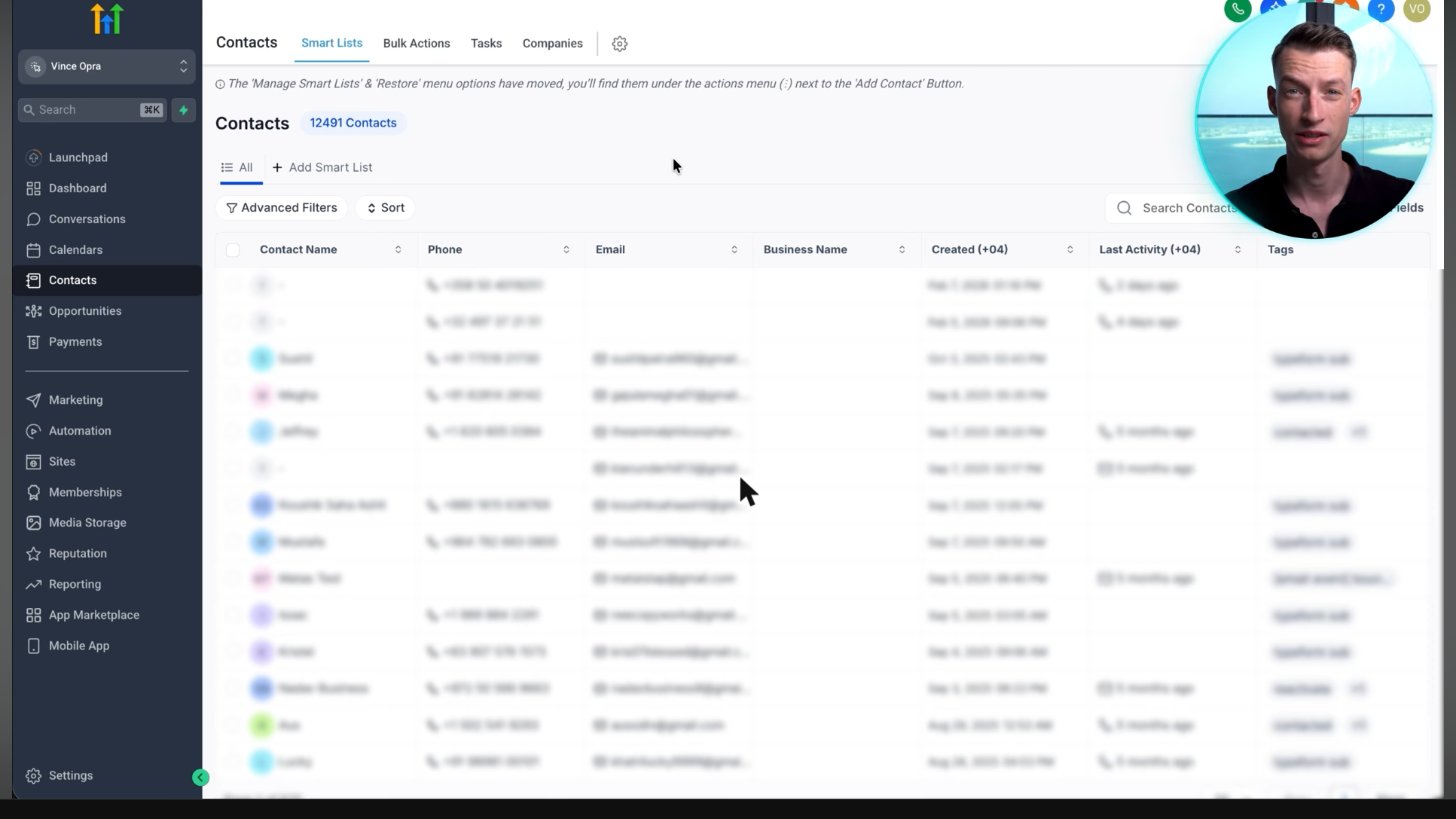
Contacts live in one searchable CRM list, ready for segmentation and follow-up.
Screenshot from Vince Opra's GoHighLevel tutorial on YouTube.
5. Build a pipeline
Create simple stages such as New lead, Contacted, Booked and Won, then add a test opportunity. Assign an owner and a realistic deal value so dashboard figures have a clear meaning.
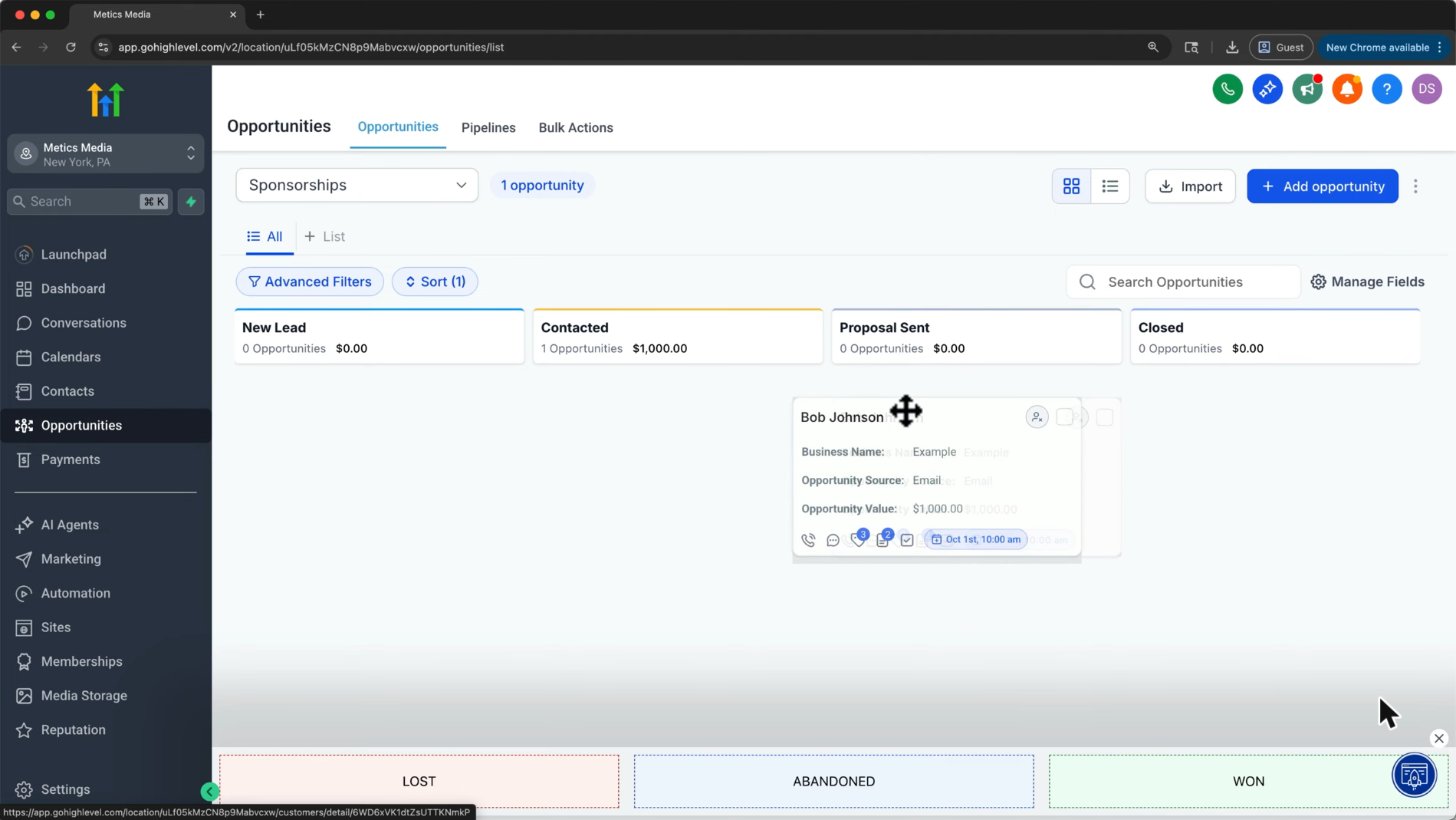
The opportunities board organizes deals into stages so your team can see the next action.
Screenshot from Metics Media's GoHighLevel tutorial on YouTube.
6. Set up a calendar and booking page
Create an appointment type, set availability and connect the appropriate external calendar. Test booking, cancellation and rescheduling from a customer’s point of view, including time zones and reminder timing.
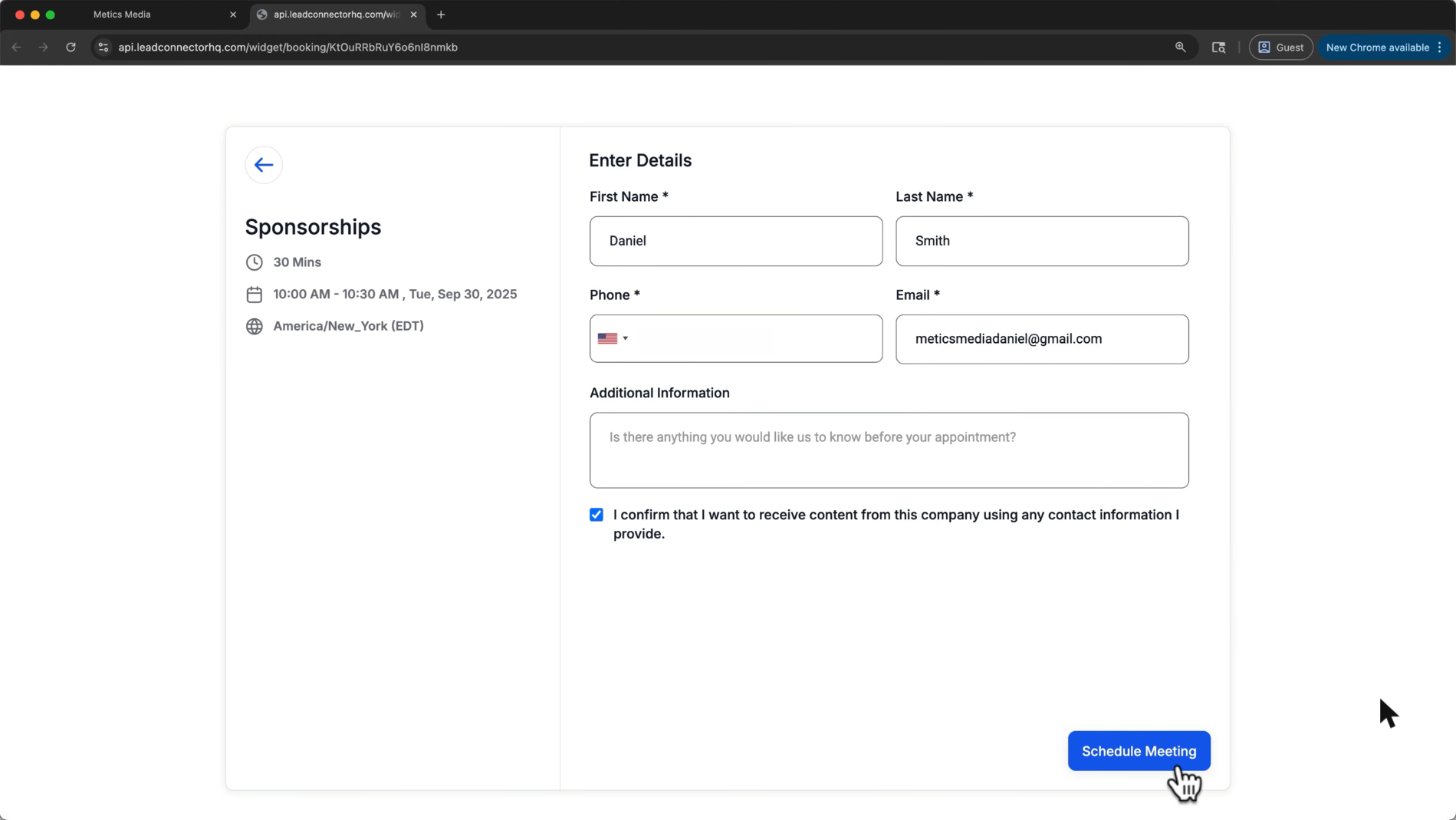
This is what your customer sees when they book: name, phone, email and a Schedule Meeting button.
Screenshot from Metics Media's GoHighLevel tutorial on YouTube.
7. Connect your phone number and email
Configure your supported phone service and sending domain using the current setup guides. Complete required verification and US A2P registration where applicable; sending charges, consent and opt-out rules still apply.
8. Build a funnel or website
Start from a template and replace its text, images, links and business details. Add a form or booking calendar, then test the submission reaches your contact record before connecting a domain and publishing.
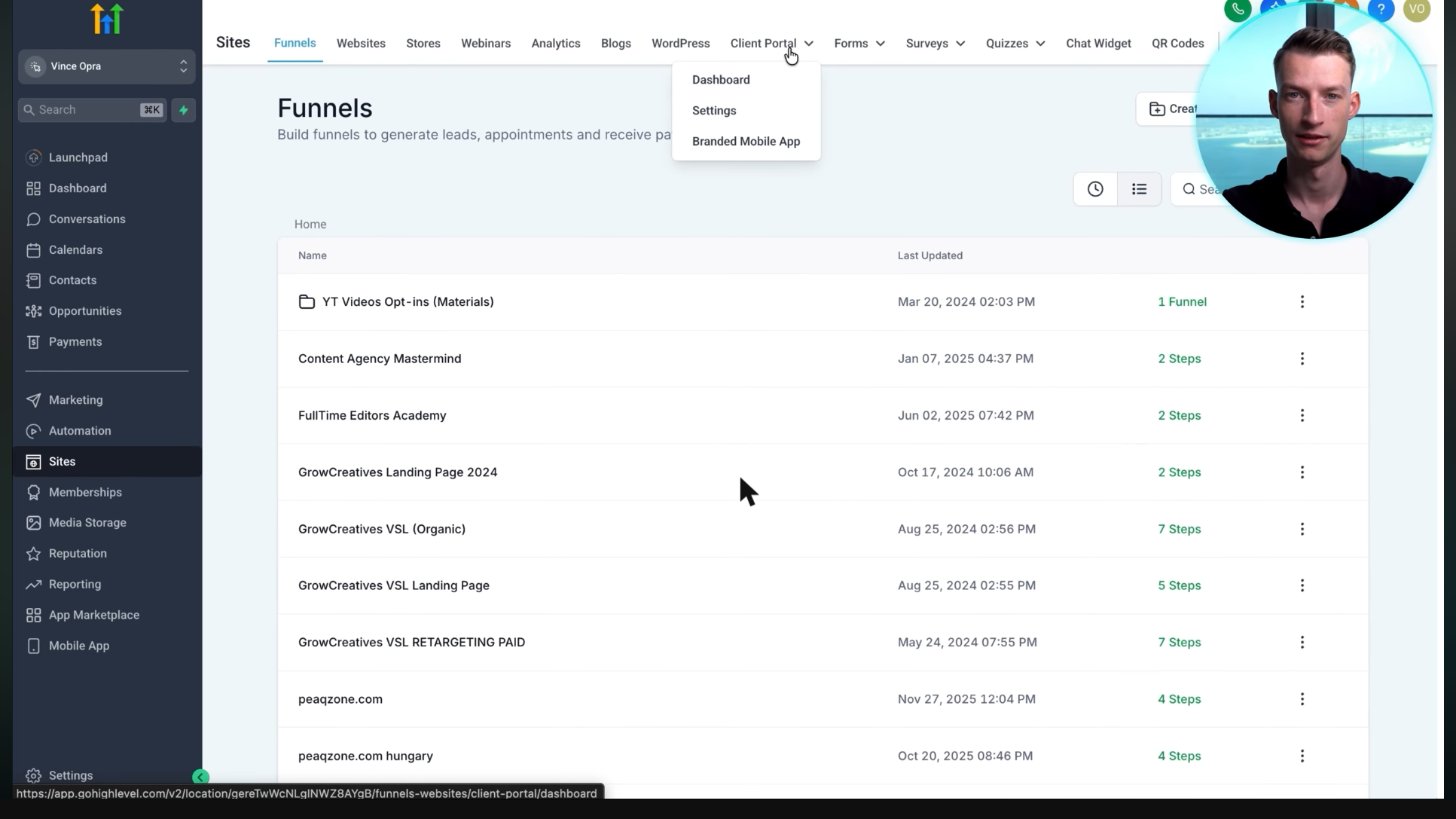
A real agency's funnels: VSL funnels, landing pages and opt-ins, each with its number of steps.
Screenshot from Vince Opra's GoHighLevel tutorial on YouTube.
9. Create your first workflow
Pick a simple recipe for lead follow-up or appointment confirmation, then set its trigger, actions and stop rules. Test it with your own contact and confirm replies, cancellations and opt-outs do not keep receiving unwanted messages.
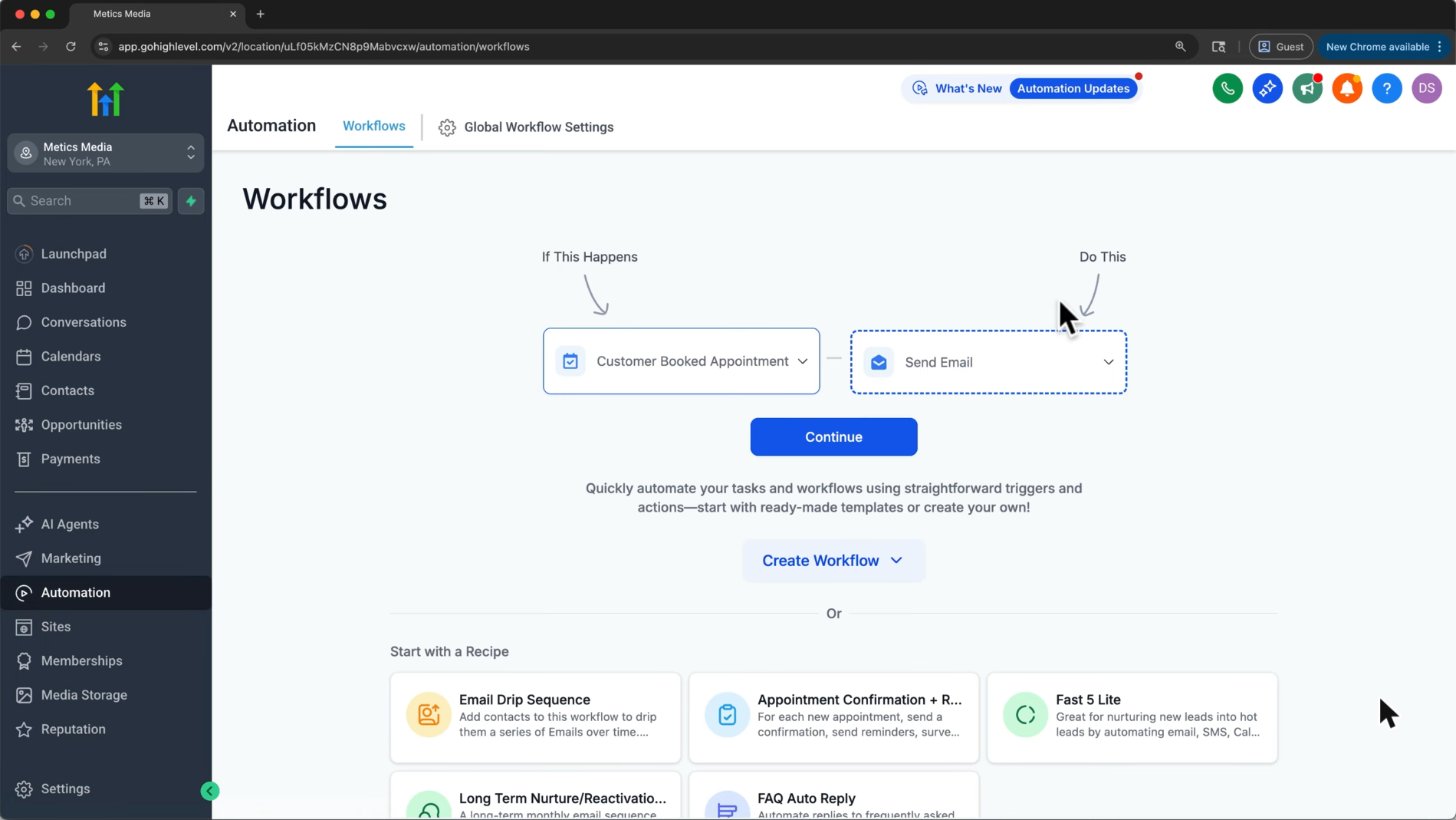
Every workflow is a trigger (Customer Booked Appointment) plus actions (Send Email). Recipes give you ready-made flows.
Screenshot from Metics Media's GoHighLevel tutorial on YouTube.
10. Turn on review requests
Connect the relevant business review account and choose when to request honest feedback. Test the link and message, respect consent, and avoid review gating or template claims that do not match your business.
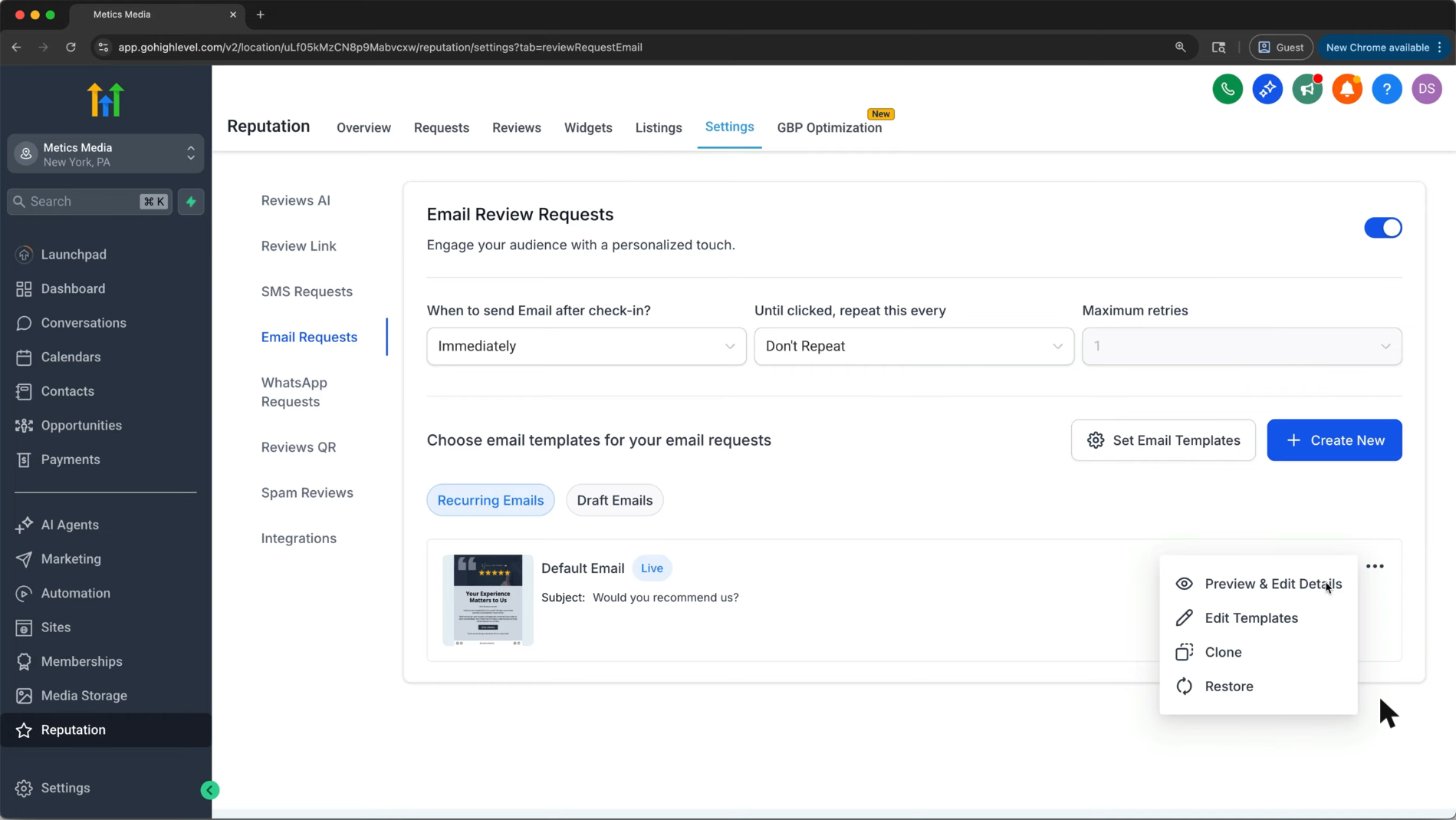
Reviews AI sits in Reputation settings next to automatic SMS, email and WhatsApp review requests.
Screenshot from Metics Media's GoHighLevel tutorial on YouTube.
Official HighLevel tutorial
How To Create & Use Custom Fields
An official setup tutorial for custom fields, supporting the contacts and business-data steps above. It is not a complete ten-step course.
Official HighLevel videoPlaying shares data with YouTube. Vendor tutorial, not an independent review.
Frequently asked questions
Is GoHighLevel hard to learn?
The menu is large, but these 10 steps cover what many businesses need first. Learn one working process before exploring every feature.
How long does setup take?
A few days can be enough for the basics in a simple account. Imports, branding, messaging approval and complex integrations can take longer; a weekend is a planning target, not a promise.
Is there official training?
Yes. HighLevel University, help articles and daily Q&A sessions offer official training. Use HighLevel’s help center to confirm current links and schedules.
Can someone set it up for me?
Yes. An agency can help, or a suitable snapshot can give you a starting setup. Review permissions, fees and all imported settings before using it with customers.
Do I need the Unlimited plan to learn?
No. Starter provides the core tools for learning. Upgrade only when your account count or specific feature requirements justify it.
Keep exploring GoHighLevel
Sources and editorial notes
- HighLevel help center: current setup instructions
- Official HighLevel pricing and plan features
- HighLevel University
Screenshots supplied by Adam, with individual source credits beneath each image. GHL Deals is an independent guide, not HighLevel. Interface labels, feature availability and usage fees can change; confirm current terms before enabling a paid feature.
Disclosure: We may earn a commission if you sign up through our links, at no additional cost to you. How we earn.